






What Makes a Good Linux Mini PC in 2026?
A good Linux mini PC is one that still behaves after the installer has finished: it wakes from sleep, holds its Wi-Fi connection, drives your monitors, and stays quiet through a long working day or weeks of uptime. A fast CPU guarantees none of that. One of the most common mistakes is buying a brand-new system for its benchmark scores, then discovering that sleep and resume, USB4 or multi-monitor output needs extra work under Linux.
This is a practical guide rather than a shopping list. It covers how Ubuntu, Fedora, Debian and Proxmox VE handle new hardware differently, what to verify for sleep, Wi-Fi, networking and displays, how much noise and power to expect from a machine that stays switched on, and where a high-end model such as the ACEMAGIC F5A HX 470 makes sense for development, HomeLab and local AI work.

The form factor is rarely the problem. A modern x86 mini PC uses the same building blocks as a larger system (an x86-64 CPU, NVMe storage, DDR5 memory, integrated graphics and standard Ethernet) in a smaller chassis that usually draws less power. Compatibility is decided by the exact components inside, and by how recent your distribution's kernel, Mesa and firmware packages are.
Mini PC vs traditional desktop
A tower gives you room for a graphics card, more drives and easy part swaps. A mini PC trades that room for a much smaller footprint, laptop-class processors, integrated graphics and a fixed set of ports. If you are still weighing the two, our mini PC vs desktop PC comparison covers the wider trade-offs.
For Linux, what you can change later matters more than size. In a tower, a troublesome network card can be swapped for an expansion card. In a mini PC, you mostly live with the controllers it ships with, which is why the checks in this guide matter more when choosing a mini PC for Linux than when building a desktop.
Linux-Compatible vs Pre-installed Linux
Shopping guides often mix up very different products. There are four main routes to a Linux computer, and each puts the setup work in a different place.
| Type | What It Means | Best For |
|---|---|---|
| Pre-installed Linux | Linux is shipped and supported as part of the product configuration. | Buyers who want the least setup work. |
| Windows PC, Linux-compatible | The PC ships with Windows. The hardware can run Linux, but you choose, install, and maintain the distribution yourself. | Developers and power users who want flexibility or dual boot. |
| Barebone | Ships without RAM or an SSD, so you fit your own parts and install the operating system yourself. | Users who already own compatible memory and storage, or want a specific layout. |
| Certified / validated | A specific OS version and hardware configuration has been tested or certified. | Buyers who need the clearest compatibility evidence. |
A computer with Linux pre-installed gives you a clearer support path for that exact image, because the vendor has already tested the combination. A Windows PC you install Linux on yourself is ordinary PC hardware, so checking the controllers is your job. A barebone goes one step further: memory, storage and the operating system are all yours to choose, and our barebone mini PC guide explains what that involves.
The F5A HX 470 belongs in the Linux-compatible group. Its acemagic.eu product page states that it comes with Windows 11 Pro pre-installed and supports Linux and Ubuntu. The page does not mention Fedora, Debian, or Proxmox VE, so for those you are relying on the platform evidence covered below and on your own checks. If you are comfortable installing a distribution yourself, that is not a drawback, but it changes what you should verify before buying.
What to Check Before Buying
The processor is rarely the first thing to fail. Most Linux problems on mini PCs come from the surrounding controllers, firmware, and software stack.

| Check | Why It Matters | What to Verify |
|---|---|---|
| Wi-Fi / Bluetooth chipset | The radio standard alone does not tell you driver quality. | Exact controller model + recent kernel and owner reports |
| GPU + kernel/Mesa | New integrated GPUs may need a newer graphics stack. | Kernel, Mesa, firmware, hardware acceleration |
| Ethernet controller | Important for HomeLab, NAS, routing and virtualisation. | Controller model, link speed, stability |
| USB4 / display outputs | A port can exist physically without every Linux workflow being equally mature. | Dock, USB-C video, multi-monitor reports |
| Sleep / resume + BIOS | Power-management issues can turn a good desktop into an annoying daily machine. | Recent firmware and owner reports |
| RAM / SSD layout | VMs, containers, dual boot and local AI can outgrow fixed memory quickly. | Upgradeable SO-DIMM, M.2 slots, supported capacity |
The last row is easy to underestimate. Virtual machines, containers and local models use memory far faster than a desktop session, so decide early whether 32GB of RAM genuinely covers your work, and how much you might need later. Soldered memory cannot be upgraded afterwards.
Do not stop at the marketing name of a component
‘Wi-Fi 7’ is a standard, not a Linux driver guarantee. If the product page does not name the wireless or Ethernet controller, ask the vendor or check the actual unit after boot. On any distribution, these commands quickly show what the machine contains and which kernel driver is attached:
lspci -nnk
lsusb
uname -r
A useful buying rule follows from this: treat the exact chipset and kernel as part of the specification, not as troubleshooting details you discover after purchase.
Ubuntu, Fedora or Proxmox: Why the Software Stack Matters
The same mini PC can behave very differently on an old Linux image and a current one. Graphics, power management, networking and media acceleration all improve as the kernel, Mesa and firmware packages move forward, and each distribution moves them at its own pace.
That is why two owners can report opposite experiences with the same model. One may be on an older LTS image; the other on Ubuntu 26.04, Fedora or another distribution with newer hardware support. For a 2026 platform, the age of the software stack is part of the hardware decision.
| Software Stack | How the Kernel and Mesa Are Updated | What It Means for New Hardware |
|---|---|---|
| Ubuntu LTS | Long-term release; newer kernels arrive through the hardware enablement (HWE) stack | Start from a current LTS point release or HWE kernel, not an old installer image |
| Fedora Workstation | New release roughly every six months, with kernel and Mesa close to upstream | Often the quickest route to support for new graphics and power-management fixes |
| Debian stable | Conservative by design; newer kernels are available through backports | Very predictable for servers, but a new platform may need a backports kernel and firmware |
| Proxmox VE | Debian base with its own kernel, derived from Ubuntu's kernel | Hardware support follows the Proxmox kernel, not the Debian kernel underneath |
Proxmox VE needs a separate note, because it is not a desktop distribution on a par with Ubuntu or Fedora. It is a Debian-based virtualisation platform for running VMs and containers, managed through a web interface, and it ships its own kernel. The Proxmox VE 9.x series currently uses a 6.17 kernel derived from Ubuntu 25.10, which is newer than the kernel in plain Debian stable. When you check driver support for a Proxmox host, look at the Proxmox kernel version rather than Debian's.
For a HomeLab, a common split is Proxmox VE on the host, with Ubuntu, Debian or Fedora inside VMs and lightweight services in LXC containers. The Proxmox documentation advises against installing Docker directly on the host, so Docker usually runs inside a Linux VM. If you are planning that kind of setup, the step-by-step guide to installing Proxmox VE on a mini PC walks through the host side.
Debian suits a different kind of always-on box. If you are running Linux on a mini PC as a file server, DNS filter or reverse proxy, Debian stable is a common choice because it changes little between releases. On brand-new hardware, though, it may need a backports kernel before everything is detected, so check that before committing to it.
Sleep, Wi-Fi, Networking and Displays
These are the areas where new hardware most often needs extra attention under Linux, and they matter more on a machine you use every day than on one you benchmark once.
Sleep and resume
Sleep and resume is still the most common daily annoyance. Many recent laptop-class platforms rely on modern standby (shown as s2idle under Linux) rather than classic S3 sleep, and how well it works depends on firmware, BIOS version, and kernel. Suspend and resume several times with your monitors and dock connected, and note the BIOS version if something fails. These commands show which sleep modes the kernel offers and what happened during the last resume:
cat /sys/power/mem_sleep
journalctl -k -b -1 | grep -i -E "suspend|resume"
For an always-on HomeLab node, the simplest answer may be to disable suspend entirely. On a desk machine you switch off at night, a reliable resume matters far more.
Wi-Fi and Bluetooth
Wi-Fi 7 cards need a recent kernel and firmware. If the controller is not named, identify it with lspci -nnk after boot and pair the Bluetooth devices you actually use. Our Wi-Fi 5, 6 and 7 comparison explains what the newer standard changes in practice. For a server, wired Ethernet is the more predictable choice anyway.
Networking
Two 2.5GbE ports are useful for HomeLab work: one for the main LAN and one for a separate VLAN, a storage network or a firewall VM. Confirm which driver is attached, check the negotiated link speed on your switch, and on Proxmox VE make sure both ports appear before you build bridges on them.
Displays and USB4
A port can exist physically without every Linux workflow being equally mature. Connect the monitors you actually use at the resolutions and refresh rates you want, and test your own USB-C or USB4 dock rather than assuming it will behave as it does under Windows. For the F5A, this is what the acemagic.eu product page states and what it leaves for you to test:
| Area | What the F5A product page on acemagic.eu states | What to check under Linux |
|---|---|---|
| Linux support | Windows 11 Pro pre-installed; supports Linux and Ubuntu | Use a current release or hardware-enablement kernel. Phoronix ran Ubuntu 26.04 LTS and Fedora Workstation 44 on an HX 470 mini PC, not on an F5A. |
| Wi-Fi and Bluetooth | Wi-Fi 7 and Bluetooth 5.4 (M.2 2230 module); controller not named | Identify the controller with lspci -nnk or lsusb, then pair your real headset, keyboard and mouse. |
| Sleep and resume | Not stated | Suspend and resume several times, check /sys/power/mem_sleep and note the BIOS version. |
| Multiple displays | Up to four screens via HDMI 2.1, DisplayPort 2.1 and the two USB4 ports | Connect the monitors you actually use, at the resolutions and refresh rates you want. |
| USB4 | Two USB4 Type-C ports, up to 40 Gbps, with DisplayPort 1.4 and 100W power input | Test your own dock, USB-C video, and external storage. |
| 2.5GbE | Two 2.5GbE RJ45 ports; controller not named | Confirm the attached driver with lspci -nnk and check the negotiated link speed. |
Where the product page is silent, treat the item as something to test rather than a known problem or a known pass. This guide has no F5A-specific Linux results for sleep, docks or Wi-Fi, so your own checks in the first days are the evidence that counts.
Ryzen AI 9 HX 470 on Linux: What Real Tests Show
AMD officially lists Ubuntu x86-64 and RHEL x86-64 among the supported operating systems for the Ryzen AI 9 HX 470. The processor combines 12 cores and 24 threads with Radeon 890M integrated graphics.
A support line on a spec sheet only goes so far. Phoronix tested an HX 470 / Radeon 890M mini PC with clean installs of Ubuntu 26.04 LTS, Fedora Workstation 44 and CachyOS alongside Windows 11. That is platform-level evidence: the core CPU and GPU combination is already running and benchmarking on an LTS release, a fast-moving release and a rolling one.
It does not mean every Wi-Fi card, dock, BIOS revision or display setup on every HX 470 mini PC will behave identically. It does mean the platform itself is no longer a Linux unknown. For the graphics side, our Radeon 890M benchmarks, measured on an F5A HX 370, give a sense of what the integrated GPU can handle.
ACEMAGIC's own HX 470 vs HX 370 data
ACEMAGIC also publishes its own CPU reference for the HX 470. In ACEMAGIC's first-party testing, the Ryzen AI 9 HX 470 records 24,980 points in Cinebench R23 multi-core, compared with 23,786 for the HX 370, about a 5.0% uplift in that specific CPU workload.


| ACEMAGIC Test Reference | Cinebench R23 Multi-Core | Difference |
|---|---|---|
| Ryzen AI 9 HX 470 | 24,980 | +5.0% vs HX 370 |
| Ryzen AI 9 HX 370 | 23,786 | Baseline |
Data source: ACEMAGIC first-party CPU reference data for the Ryzen AI 9 HX 470, measured on ACEMAGIC's F2A HX 470 reference platform.
This is a CPU performance reference, not a Linux compatibility benchmark and not an F5A-specific Linux result. A 5% multi-core gain is measurable but modest; for most Linux workloads, memory capacity and expansion matter more than the step from HX 370 to HX 470.
F5A HX 470 for Development, HomeLab and Local AI
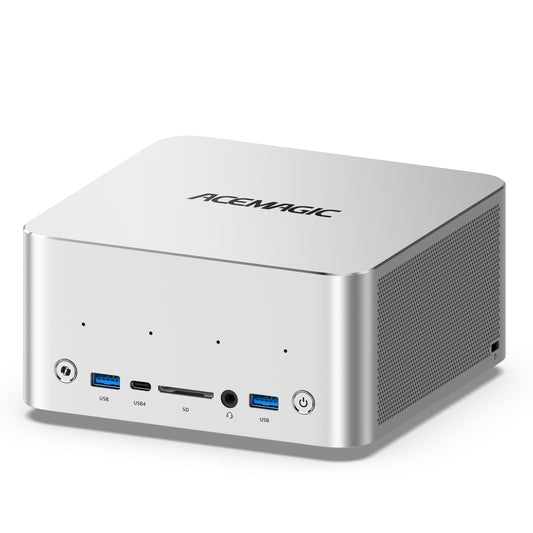
The F5A is most interesting when Linux is doing more than browsing and office work. On acemagic.eu, the HX 470 version currently in stock is the Pro model: 32GB of DDR5-5600 in two SO-DIMM slots (2 × 16GB), upgradeable to 128GB, with a 1TB PCIe 4.0 SSD fitted and two M.2 2280 PCIe 4.0 x4 slots that take up to 4TB each (8TB in total). It also has Wi-Fi 7, Bluetooth 5.4, two 2.5GbE ports, two USB4 ports, HDMI 2.1, DisplayPort 2.1 and OCuLink.
That does not make it the right Linux PC for everyone. For browsing, office work, email and video calls, 32GB is already generous and much of the HX 470's headroom would sit idle. The case for the F5A is development, Docker, virtual machines, Proxmox VE, local AI and other high-memory work, where the extra cores, the second Ethernet port and the free memory capacity actually get used.
| Linux Workload | What Matters | Why the F5A HX 470 Fits |
|---|---|---|
| Development / Docker | Multi-core CPU, RAM headroom, fast storage | 12C/24T HX 470; 32GB SO-DIMM, upgradeable |
| Virtual machines / Proxmox VE | Memory capacity and SSD space | Up to 128GB RAM and 8TB NVMe |
| HomeLab / server | Networking, storage, memory | Dual 2.5GbE + two PCIe 4.0 x4 M.2 slots |
| Local AI | Memory capacity, GPU backend, software support | Radeon 890M + high-memory configurations |
| Desktop / multi-monitor | Graphics stack and display I/O | Up to four displays via HDMI 2.1, DP 2.1 and USB4 |
A community example: 128GB on the F5A platform
A community example shows how the expandable F5A design is being used in practice. One F5A HX 370 barebone owner installed 128GB of DDR5 and a 2TB NVMe SSD, then ran Ubuntu LTS with ROCm 7.0.2 and Ollama. The owner reported running gpt-oss:120b at roughly 12 tokens per second while using around 61GB of RAM.
This is not an HX 470 benchmark and should not be used to predict identical F5A HX 470 performance. Its value is different: it shows a real owner using the F5A platform for Linux, large-memory configurations, ROCm and Ollama, rather than installing Linux once and calling it compatible.
For local AI, the TOPS figure on its own says little. Model size, quantisation, available memory and the software backend change real performance far more. Linux support for the XDNA2 NPU is improving, but tool and framework support is still evolving, so most Linux local-AI setups today run on the CPU or the Radeon GPU. OCuLink also needs an external GPU dock before it becomes useful.

Noise and Power in Everyday Use
For a desk machine or a 24/7 HomeLab server, noise and power draw matter as much as peak performance. ACEMAGIC rates the F5A HX 470 at below 28 dB in desktop use and up to 35 dB under a 54W full load.
The Pro version also supports 45W, 54W and 65W power limits in the BIOS. Lower settings may suit light or always-on workloads, while higher limits provide more headroom for sustained performance.
Under Linux, powertop can help check power use, while lm-sensors can monitor available temperature readings.
Test Linux Before Replacing Windows
You do not need to repartition the internal SSD to find obvious compatibility problems. Boot a current Live USB of the distribution you plan to use (Ubuntu and Fedora both offer one) and test the peripherals that matter to your setup.
- Connect to Wi-Fi and pair your actual Bluetooth headset, mouse or keyboard.
- Check Ethernet at the link speed you plan to use.
- Test HDMI, DisplayPort, USB-C video and the number of monitors you actually need.
- Plug in your real USB-C / USB4 dock, storage device or capture hardware.
- Check audio input/output and, where practical, sleep and resume.
A five-minute Live USB check with your own peripherals is often more useful than a generic ‘Linux compatible’ badge. The Proxmox VE installer has no live desktop session, so if the machine is destined to be a Proxmox host, boot an Ubuntu or Fedora live image first to check the network controllers and storage, then install Proxmox VE.
Quick checklist before you buy
- Confirm the exact Wi-Fi / Bluetooth and Ethernet chipsets when possible.
- Check recent Linux reports for sleep, resume, USB4 and multi-display if those features matter to you.
- Look for owner reports about s2idle versus S3 sleep under Linux.
- Match the distribution and kernel generation to the age of the hardware, and check the Proxmox VE kernel if the machine will be a hypervisor.
- Choose memory and storage for your actual workload, not the maximum spec.
- Boot a current Live USB before deleting Windows or committing to dual boot.
- Keep the returns window in mind: the F5A's acemagic.eu product page states a 30-day return policy and a 2-year warranty, so run your tests early. For returns without a fault, the return policy puts the return shipping cost on the customer.
When Linux is not the best main OS
Linux is excellent for development, servers and virtualisation, and increasingly for gaming and local AI. It is still not the easiest choice for every workflow:
- Adobe Creative Cloud-heavy workflows
- Windows-only enterprise software
- Some anti-cheat-protected games
- Vendor utilities and firmware tools that exist only for Windows
If one of those is central to your work, dual boot or a second NVMe drive for Linux can be a better compromise than forcing Linux to replace Windows completely.
Who Actually Needs a High-End Linux Mini PC?
A normal Ubuntu desktop does not need an HX 470. Browsing, office work, email, video calls and light development run comfortably on a mid-range mini PC with 16–32GB of RAM, and the money is better spent on a quiet machine with well-supported controllers.

| Use Case | Practical Starting Point | What to Prioritise |
|---|---|---|
| General Ubuntu desktop | 16–32GB RAM | Stable drivers, display support, quiet operation |
| Development/containers | 32GB+ | CPU cores, NVMe, RAM headroom |
| HomeLab / server | 32–64GB+ | Dual LAN, storage expansion, reliability |
| Heavy VMs / Proxmox | 64GB+ | RAM capacity, SSD capacity, networking |
| Local AI | 64GB can be useful | Memory, GPU/software backend, model size |
| Linux gaming | 32GB is usually enough | Mesa/driver maturity, Steam/Proton compatibility |
A high-end mini PC starts to make sense when several of these apply at once: you run a stack of containers or a Proxmox VE host with several VMs, you want to keep models in memory for local AI, you compile large projects, or you want one compact machine to replace both a desktop and a small server. That is where the F5A's SO-DIMM slots, two 2.5GbE ports, and twelve cores earn their place.
If your workload rarely exceeds 20GB of memory, a 128GB configuration will not make the desktop feel faster. Where memory does matter, the difference between soldered LPDDR5X and DDR5 SO-DIMM memory becomes a practical decision rather than a spec-sheet detail.
Bottom Line
In 2026, almost any Linux mini PC will boot Ubuntu. What separates them is whether the controllers, the kernel and Mesa versions of your chosen distribution, the memory layout, the networking and the display stack suit your workload, and whether the machine stays quiet and efficient when it runs all day.
For Linux development, Proxmox VE, Docker, HomeLab services or local AI, the F5A HX 470 is a strong power-user option: the Pro version on acemagic.eu starts with 32GB of DDR5 SO-DIMM memory, scales to 128GB and pairs that with dual 2.5GbE, USB4, OCuLink and two PCIe 4.0 x4 M.2 slots. For a basic desktop, it is more hardware than you need.
Whatever you choose, test sleep, Wi-Fi, networking and displays on your own setup in the first days. If your local AI plans outgrow what an HX 470 with 128GB can handle, our look at whether a 128GB Strix Halo system is worth it for local AI covers the next tier up.
Frequently Asked Questions
What makes a good Linux mini PC?
Well-supported controllers and a recent enough kernel matter more than benchmark scores. Check Wi-Fi, Ethernet, graphics and sleep support for the distribution you plan to use, then size the CPU, RAM, storage and networking for your workload. For power users, upgradeable memory can matter more than a small benchmark lead.
Is Fedora or Ubuntu better for a new mini PC?
Fedora moves to a new kernel, and Mesa releases faster, which often helps with brand-new hardware. Ubuntu LTS offers longer support and gets newer kernels through its hardware enablement stack. On a 2026 platform, either is a sound choice if you install a current release rather than an old image.
Is Proxmox VE a Linux distribution like Ubuntu or Fedora?
Not in the same sense. Proxmox VE is a Debian-based virtualisation platform for running virtual machines and containers, managed through a web interface rather than used as a desktop. It ships its own kernel, so hardware support depends on the Proxmox kernel version rather than on Debian's.
Can I run Docker on a Proxmox mini PC?
Yes. The usual approach is to run Docker inside a Linux virtual machine on the Proxmox host, because the Proxmox documentation advises against installing Docker directly on the host. Plan memory for the host, each VM and the containers inside them.
Why does sleep and resume fail on some Linux mini PCs?
Sleep depends on firmware, BIOS settings and kernel support working together. Many recent platforms use modern standby (s2idle) instead of classic S3 sleep, and results can change between BIOS and kernel versions. Suspend and resume several times with your own monitors and dock connected before relying on it.
How loud is the ACEMAGIC F5A HX 470?
According to ACEMAGIC, noise stays below 28 dB in desktop use and reaches a maximum of 35 dB under a 54W full load. No temperature data was provided, and the figures have not been independently measured for this guide.
Does a normal Ubuntu desktop need a Ryzen AI 9 HX 470?
No. Browsing, office work, email and video calls run well on a mid-range mini PC with 16 to 32GB of RAM. The HX 470 makes more sense for virtual machines, Proxmox VE, Docker, local AI and other high-memory work.
Can I try Linux without deleting Windows?
Yes. A current Ubuntu or Fedora Live USB lets you check Wi-Fi, Bluetooth, audio, displays, Ethernet and other basics before changing the internal drive.