





Make Your Windows Haunted: Halloween Projection with a Mini PC
A pumpkin lamp glows by the door, and guests are already peering at the glass. A Halloween window projection turns that pane into the first scare of the night—with a Mini PC (or a PC you already own), a projector, translucent material, and a local looping clip.

What You Need
Gather the kit before you aim the lens. You need a computer that can output video over HDMI or USB-C, a projector bright enough for your window, translucent rear-projection film or thin white fabric, a reliable video cable, and Halloween decoration clips saved on local storage—an SSD rather than a hard disk keeps short loops snappy when you skip between files.
If a laptop or desktop you already own can drive the projector full-screen with a stable loop, start with that. A Mini PC is useful when you want a small box that stays behind the projector, leaves the hallway clear, and keeps ports facing the cable run.
- Computer: existing PC or Mini PC with HDMI (or USB-C with video output)
- Projector matched to the window size and throw distance
- Translucent rear-projection material (not a thick blackout curtain)
- Direct HDMI cable where both ends support it
- Local Halloween clips in one clearly named folder
- Wireless keyboard or phone remote for quick pauses at the door
Choose the Window and Projection Material
Where guests will actually see it
Pick a pane visible from the path, courtyard, or street where people arrive. Stand where guests will stand after dark and size the picture to that viewing distance. If nobody will look from outside, project onto a pale indoor wall near the entrance instead.
Before you tape the projector down, walk the approach twice: once with hallway lights on, once with them dimmed. Note where bushes, parked bikes, or a porch roof cut the view. Aim the brightest part of the ghost loop at eye height for someone standing on the path, not at the top of the frame from indoors.
Projector throw first, Mini PC second
Picture size is set by the projector’s throw ratio and how far it sits from the glass—not by the computer. The Mini PC only plays the file. Check the projector manual for throw distance versus image width, then place the unit so the frame fills the pane without clipping the frame or spilling onto the wall.
As a quick check: if the manual lists a throw ratio around 1.5:1, a 1.5 m throw distance roughly fills a 1 m wide image (makers vary on exact definitions, so treat the manual chart as the source of truth). Move the projector on the floor, or a low table, until the left and right edges of the clip sit just inside the window frame, then mark the feet with tape.
Dim orange or purple lamps so they set the mood without washing out the glass. Leave a little light along the route to the door so guests can walk safely. If street lamps or other ambient light bleach the pane, cut that light where you can, shrink the picture slightly, or move the projector so more of the image sits on the glass—rather than relying on a darker clip alone.
Pick a translucent surface
Use suitable translucent rear-projection film or a thin white fabric made for projection. A thick blackout curtain usually blocks too much light for a clear silhouette from outdoors.
A phone torch only shows whether light passes through; it does not prove the material will look right as a haunted window. Test with your actual projector and decoration clip, then walk outside and watch a short loop from the guest path before you tape anything permanently. Smooth wrinkles first—folds read as dark bands from the street—and leave a small margin of material beyond the glass so the projected edge does not fall on the window frame.
Connect and Align the Projector
Cable, input, and Windows display
Connect HDMI from the Mini PC to the projector, then select that input on the projector remote. In Windows, choose the external display so the loop is not trapped on the primary display. For a fuller walkthrough of display setups, see how to connect a laptop to a TV.
If you need a USB-C to HDMI adapter, confirm that the Mini PC port supports video output—some USB-C ports only carry data and power. For a quick refresher on HDMI, DisplayPort, and USB-C video, see common monitor cable types. Prefer a direct HDMI run when both ends allow it, and label one spare cable in the kit.
Focus, frame, and flip once
Focus the lens, then walk outside and check the frame from the guest path. Mark the projector feet with tape once the picture looks right. Outdoor viewers often see the back of a rear-projected image, so lettering and silhouettes can appear mirrored—flip horizontally in the player or projector settings, then check again from outdoors. Do this once during setup; you should not need to revisit it mid-evening.
Keep heads and snack tables out of the beam near the door. A wireless keyboard with a touchpad helps you pause or swap clips without leaving the entrance.
Set Up a Seamless Halloween Loop
Copy decoration clips to the Mini PC beforehand and play them from local storage so the window does not depend on Wi-Fi all evening. Put every file for the night in one clearly named folder, including a milder backup clip and one dark still you can park on while swapping titles.
Open the decoration file in a local player (not a browser tab), switch to full screen, and turn on repeat or loop. Hide the taskbar, enable Do Not Disturb or Focus Assist, and set the PC so it will not sleep or turn the display off while on power. Close chat, mail, and update prompts that can steal focus mid-loop. Restore your usual power and notification settings after the evening.
Watch at least three complete loops from the guest path. Check for end cards, progress bars, watermark timers, or a flash of desktop between repeats. If the player shows a playlist gap, merge clips into one file or shorten the gap in the player settings before guests arrive. Test one full loop with Wi-Fi disabled so a brief outage does not interrupt the window.
Keep the wireless keyboard within reach of the door so you can pause for a conversation or swap to the milder clip without walking through the beam. When you change files, switch to the dark still first so the path does not suddenly show a bright desktop.
Troubleshooting and Safety
Picture and playback
- Too dim: reduce brighter room lights first, confirm the material with a real outdoor test loop, then move the projector only within its throw range—do not push past the manual’s distance chart.
- Mirrored text or people: flip the image horizontally once, then confirm from the path before guests arrive.
- Loop drops to the desktop: re-enable fullscreen and repeat, disable notifications, and keep sleep off for the evening.
- No sound: in Windows sound settings, select the projector or an external speaker path you tested during setup; HDMI audio is not automatic on every device.
- Picture cuts out: reseat the HDMI cable, try another known-good lead, and avoid long adapter chains when a direct run is possible. Older projectors with only DVI need a proper DVI-to-HDMI path, not a random passive dongle.
Quick safety checklist
- Leave vents clear and keep loose artificial cobwebs away from fans.
- Keep drinks away from the Mini PC, projector, and power strip.
- Secure cables outside walkways and leave a dim light along the route to the door.
- Keep the Mini PC and power supply dry; watch for condensation near open windows and bring the kit inside after the evening.
Choosing a Mini PC
Start with a PC you already have if it can drive the projector full-screen and hold your clips locally. Buy a Mini PC instead of a full desktop only when you need a quieter living-room box, clearer HDMI/USB ports for the cable run, or enough SSD space for a small library of decoration videos.
Match the machine to the job: local storage for clips (an NVMe SSD helps when the library grows), a straightforward HDMI path to the projector, and quiet operation near the hallway. A simple looping decoration does not need the most expensive configuration on the shelf.
| Your plan | What to prepare | ACEMAGIC option on acemagic.eu |
|---|---|---|
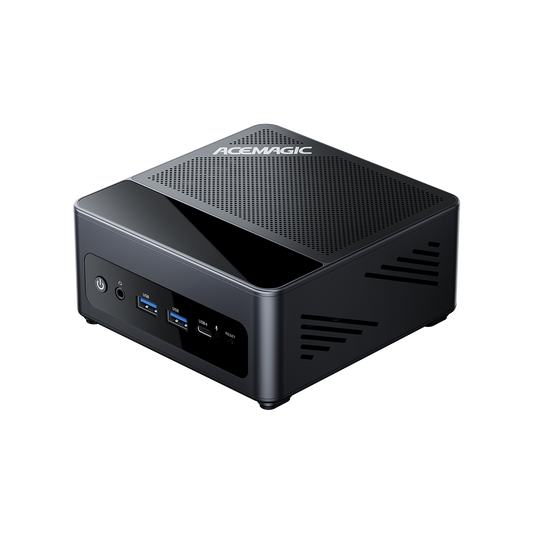
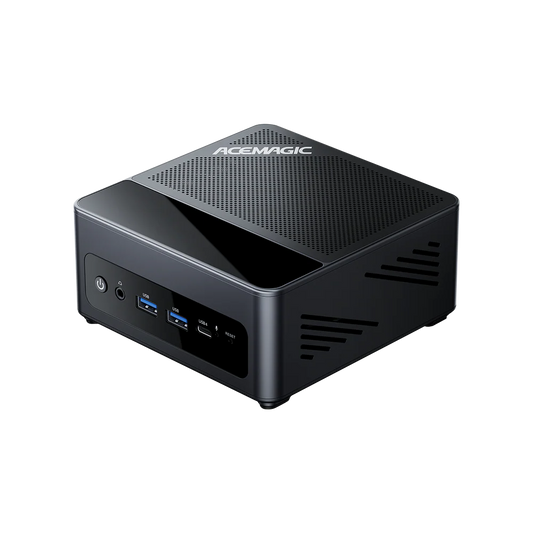
| Haunted window loop | Projector, translucent surface, local clips, tested HDMI path | K1 Ryzen 7 7730U, 16GB + 512GB SSD (Black) |
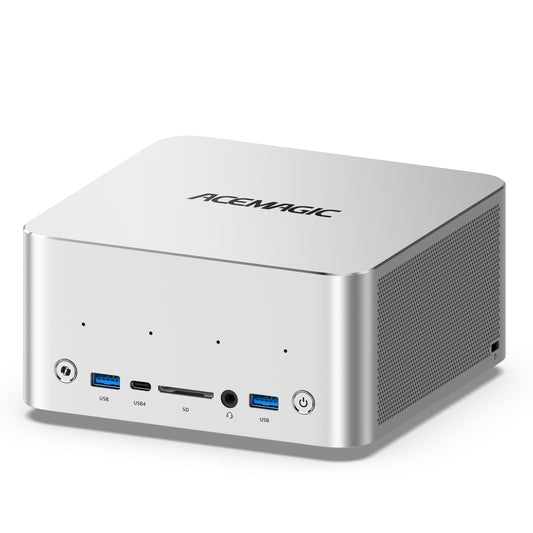
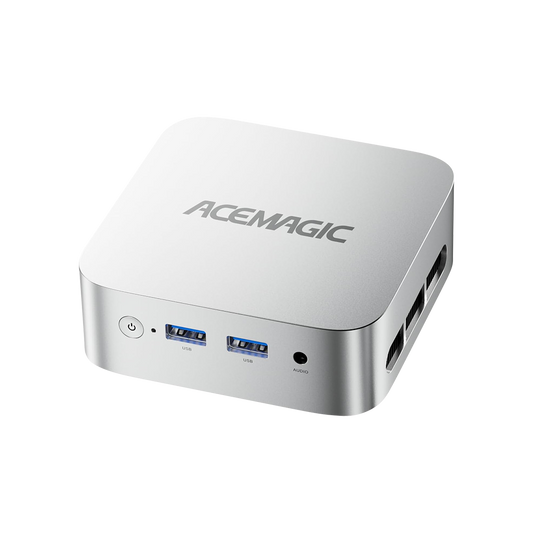
| Window loop plus a separate indoor film | Optional second Mini PC so each display keeps its own playback controls | K5 Intel Core 5 320, 16GB LPDDR5 + 512GB SSD |
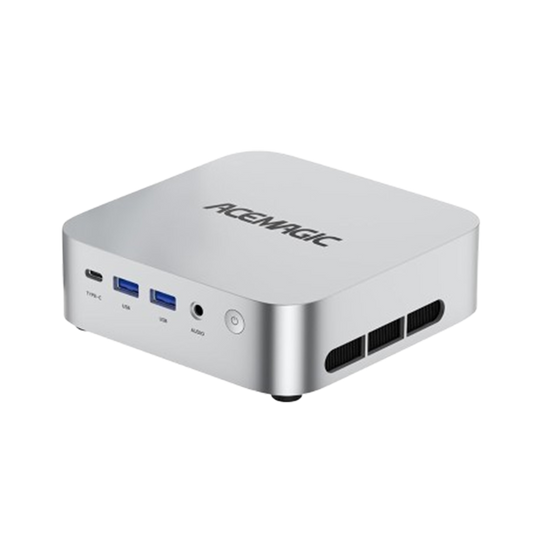
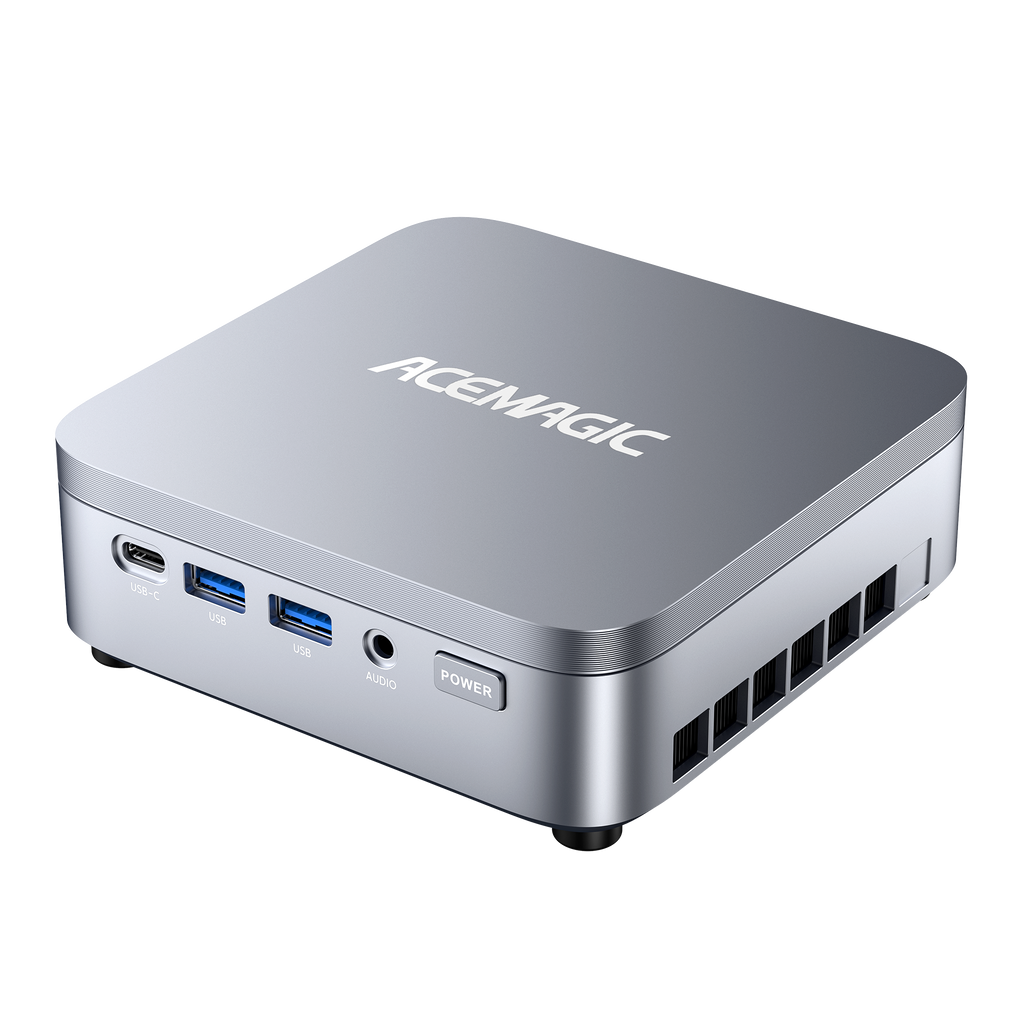
For most Halloween window setups, the ACEMAGIC K1 with Ryzen 7 7730U, 16GB memory and a 512GB SSD (Black) is the primary pick on acemagic.eu. HDMI connects to a compatible projector, and USB ports give you somewhere for a wireless keyboard receiver. Keep welcome slides and decoration files on the SSD, and check free space before loading a large collection.

A second computer is optional. An existing PC that can drive more than one display may already play the window loop on the projector and a film on the TV at the same time. A second Mini PC is useful when you want the two setups in different rooms, with independent playback controls and no shared cable juggling. Watching the film on a TV while the window keeps looping? Keep the projector on window duty, and only add another box if one machine cannot place or control both paths cleanly.
Optional: Switch to a Halloween Film
When the doorbell slows down, you can end the ghost loop and move the same Mini PC to the living-room TV for a short film. Pause on a dark still, connect the Mini PC to the TV with HDMI, select that HDMI input on the TV, then open a title you already tested that afternoon. Keep the taped projector marks and the flip setting note so you can restore the window in minutes if more guests arrive.

Play a few minutes of the actual title through the final TV path during setup, including sign-in and any subtitle track. Seeing a local decoration loop on the projector does not prove a film will play cleanly on the TV later.
Subtitles matter when the group mixes languages. Load tracks in advance, test font size from the furthest seat, and keep a gentler title ready for anyone who has had enough jump scares. If you still want the window looping while the film plays indoors, use a second display path—or the optional second Mini PC above—only when one machine cannot place or control both cleanly. Arranging two Windows outputs side by side is covered in how to split the screen on Windows.
When Halloween is over, pack the projection film with the taped projector marks and a note of the flip setting that looked correct from outdoors. Leave the tested HDMI path and wireless controls ready so next year’s window needs far less setup. Planning next year’s kit? Browse Mini PCs on acemagic.eu once the decorations are packed away.
Frequently Asked Questions
Where can I project if I do not have a street-facing window?
Use a courtyard pane, balcony door, or pale indoor wall near the entrance—anywhere guests naturally look when they arrive. If nobody will stand outside, keep the haunted scene as an indoor backdrop.
Can an ordinary curtain work as a projection surface?
A thick blackout curtain usually blocks too much light. Prefer translucent rear-projection film or thin white projection fabric, and confirm with a short outdoor test using your projector and clip before guests arrive.
Why do text and people look reversed from outside?
Outdoor viewers often see the back of a rear-projected image. Flip horizontally in the player or projector settings, then check again from the path.
How do I stop the Windows desktop flashing between loops?
Play a local file full-screen with repeat on, hide the taskbar, and disable notifications. Watch several complete loops and keep a dark still ready while you change clips.
Do Halloween clips need to stay online all evening?
No. Copy files to local storage and test one full loop with Wi-Fi off. Keep sleep disabled for the evening, then restore your usual power settings afterward.
Should I buy a new Mini PC just to loop a ghost clip?
Not if a PC you already own can drive the projector and hold the files. Choose a Mini PC when you need a compact HDMI box, quiet living-room placement, or more local storage for clips.